
Reinvent Rename & Replace Media
WordPress Rename & Replace Media
Rename images and replace media files without breaking links. Updates links everywhere, keeps old URLs working and lets you undo.
A free plugin, coming soon to WordPress.org.
Why Rename & Replace Media
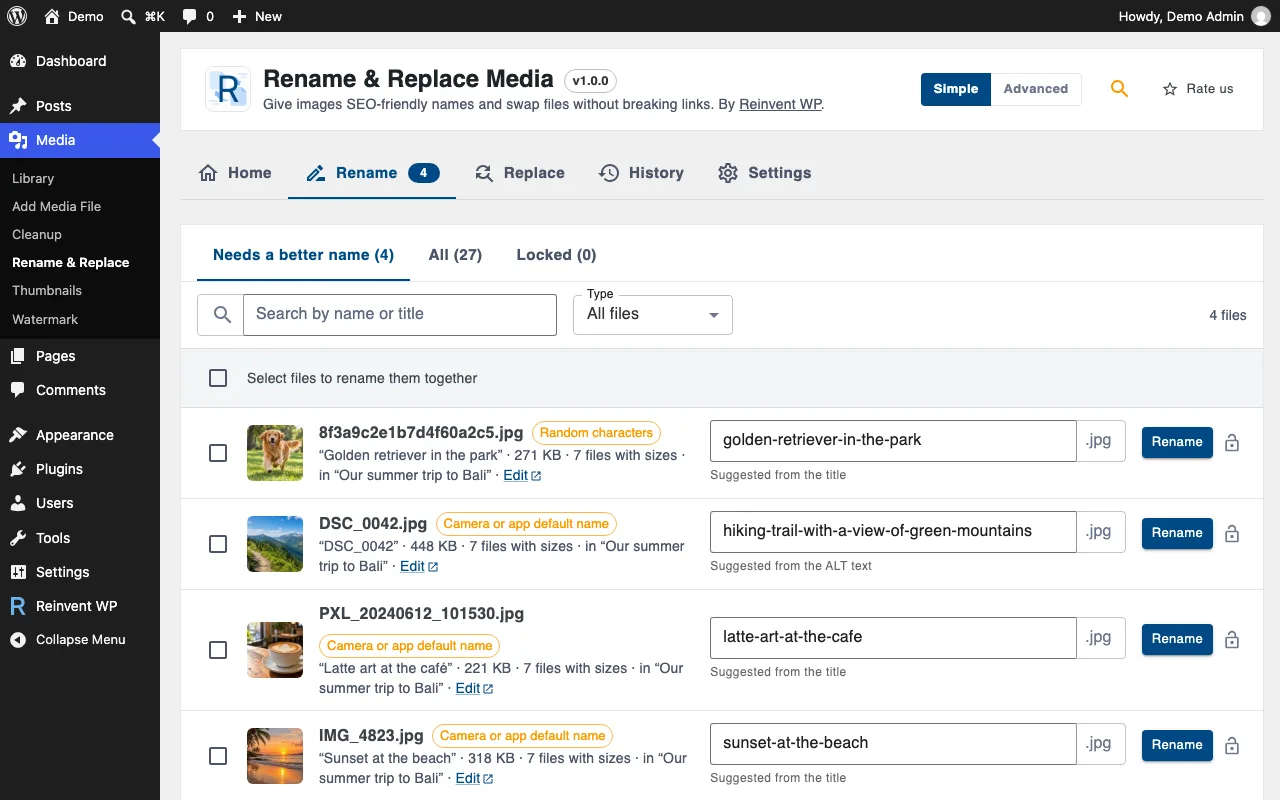
Your Media Library is full of names like IMG_4521.jpg, DSC_0042.jpg and Screenshot-2024-…png. Search engines read file names, and so do people. Reinvent Rename & Replace Media finds those names, suggests better ones and renames them safely.
Rename images for SEO
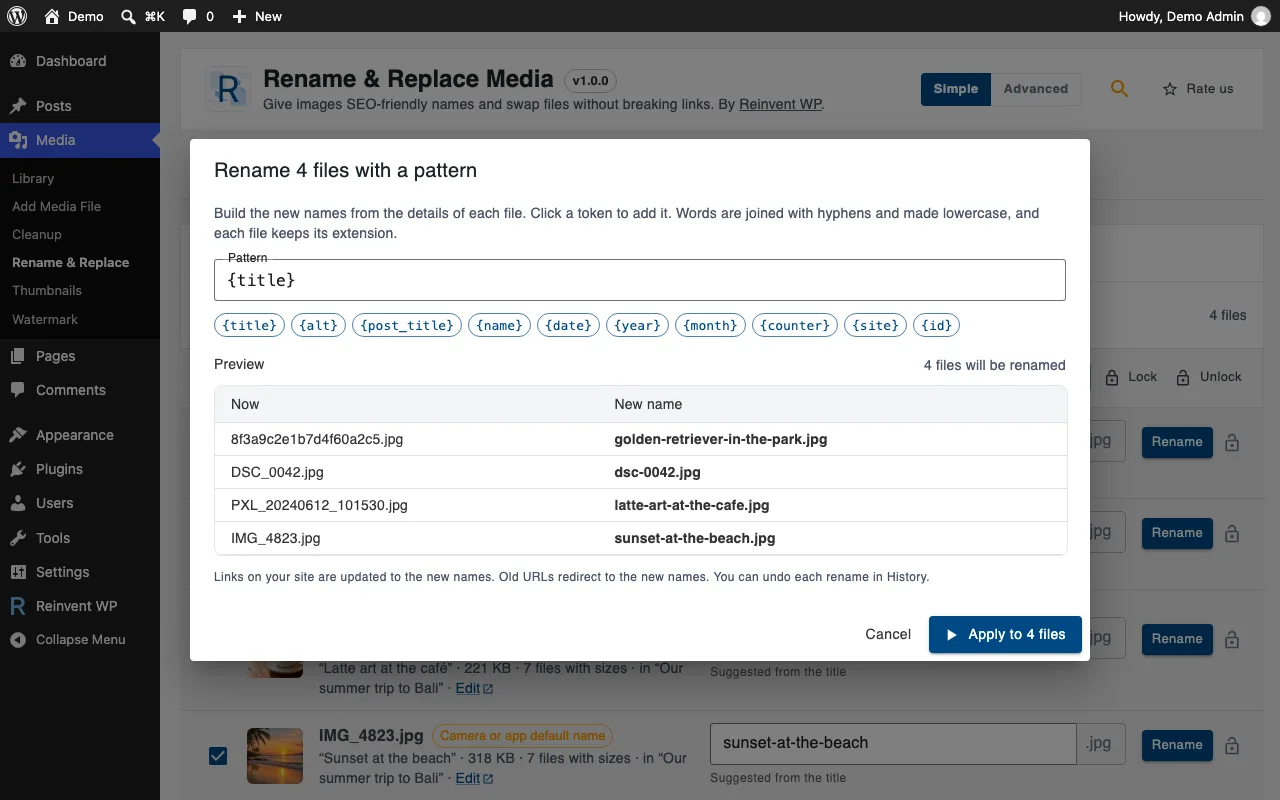
We spot camera, phone and screenshot names, random characters and number-only names, and suggest a better name from the image title, ALT text or the post it belongs to. Rename one at a time, or many at once with a pattern like {post_title}-{counter} and a preview before anything changes.
Nothing breaks
Renaming changes every file of the image: the original, every size, the "-scaled" copy, edited versions and WebP/AVIF copies. Then every link is updated: posts and pages, page builders (Elementor, Divi, Beaver Builder, Bricks, WPBakery…), custom fields (ACF, Meta Box…), widgets, theme settings and comments. If any file can't be renamed, everything is put back.
Old links keep working
Someone with an old link, Google Images or an email you sent last year still gets the image: old file names redirect to the new ones automatically, for every size.
Undo anything
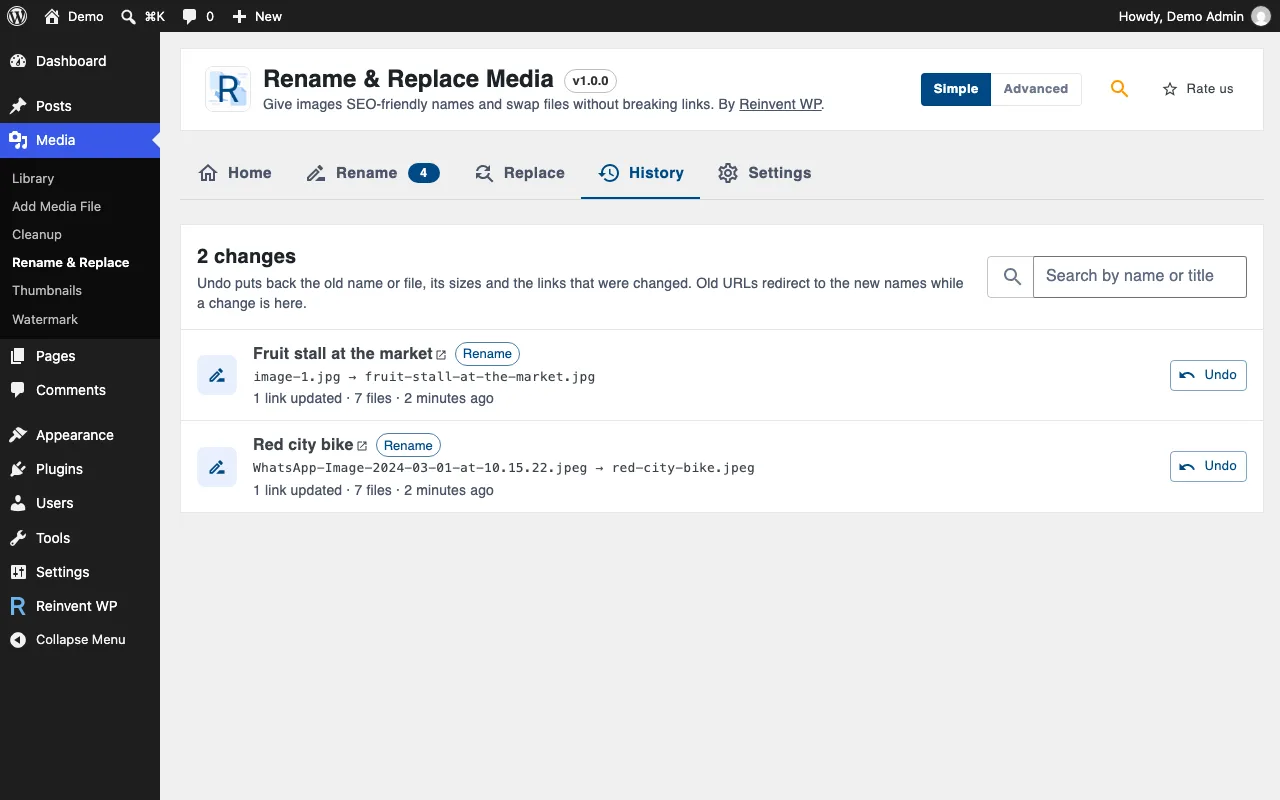
Every rename and replace is in the History, with one-click undo for the files, the data and the links.
Replace a file, keep the URL
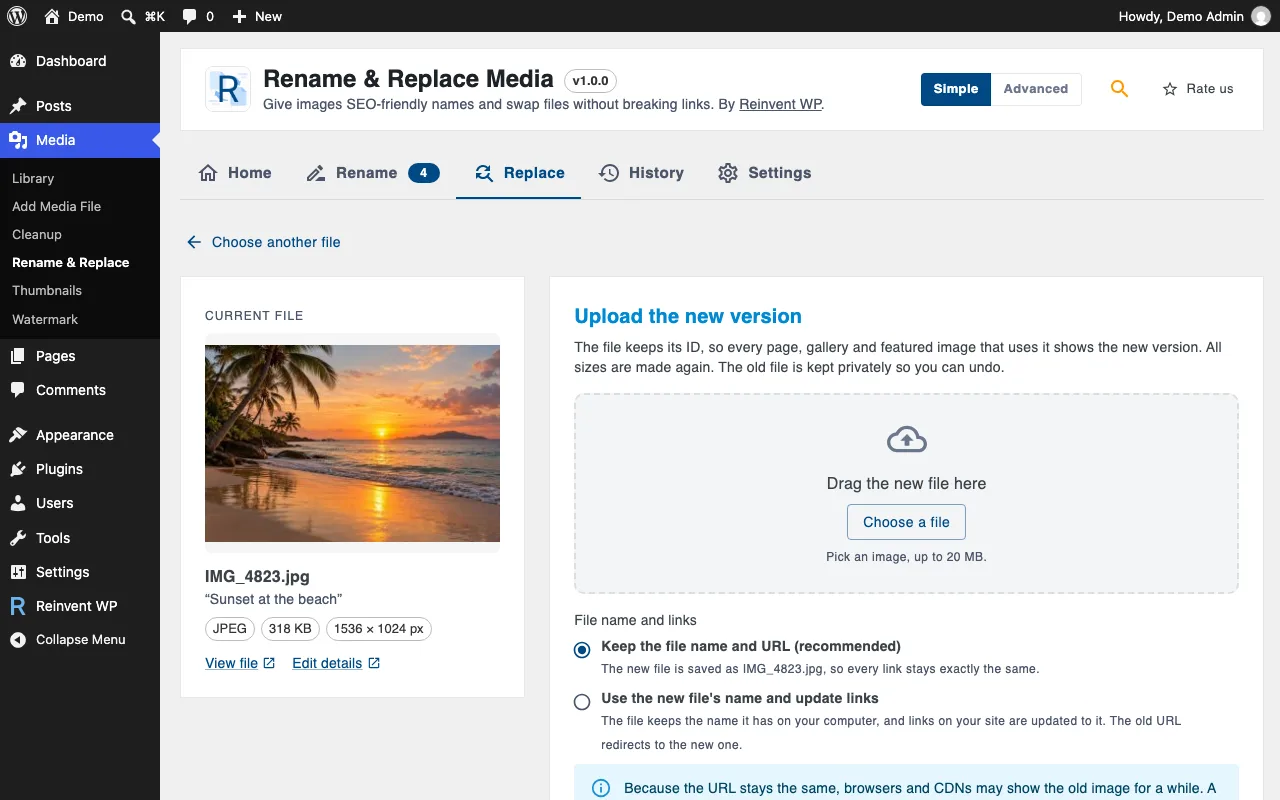
Upload a new version of an image or PDF and keep its URL, ID and everywhere it's used. Or use the new file's name and update the links. The old file is kept aside so you can undo.
Good names from the start
New uploads get clean names automatically: lowercase, no accents, hyphens instead of spaces. Or name them after the post you upload them to.
See it in action
01
Camera and phone file names are found for you, each with a better name taken from its title, ALT text or post.
02
Rename many files at once with a pattern, and see every new name before anything changes.
03
Swap in a new version of a file and keep its URL, so every page shows the new image.
04
Undo a rename or replace from History; old URLs keep redirecting to the new names.
Rename & Replace Media is coming soon
It will be free on WordPress.org. Want it sooner? Tell us what you need it for.
Tell us you want itOnce it is out
- 1
Install the plugin from Plugins → Add New, or upload the zip.
- 2
Activate it. You land on Media → Rename & Replace.
- 3
Review the suggested names and rename.
Everything it does
Everything is free
Find bad file names and get suggestions
Rename one file, or many with patterns and a preview
Updates links in posts, page builders, custom fields, options, widgets and comments
301 redirects from old file names, for every size
History with undo
Replace files: keep the URL, or use the new name
Clean names on upload
Lock files you never want renamed
"Rename" and "Replace file" in the Media Library
Simple and Advanced modes, plus a settings search that understands plain words
WP-CLI:
wp rename-media find,rename,bulk,undo
Safe by design
Plans the whole rename first and never overwrites another file.
All or nothing: if one file can't be renamed, the others are put back.
Serialized and JSON data (used by page builders) is decoded, updated and saved correctly. Anything that can't be updated safely is left as is and reported.
Replaced files are moved to a private folder, never deleted, so undo always works.
Tip: keep a recent backup, like with any tool that changes files.
Questions and answers
Yes. Open History and click Undo. The files, the image data and the links go back to how they were. Undo the newest change of an image first.
"Keep the file name and URL" puts the new file under the old name, so nothing else changes. Use it for an updated version of the same image or PDF. "Use the new file's name" gives the item the new file's name and updates the links, which is useful when the type changes (for example PNG to JPG).
Your browser or a CDN may have the old file cached under the same URL. Reload with Shift held down, or clear your CDN cache. We clear the caches of common caching plugins automatically.
No. WordPress uses the GUID as a permanent ID, so it stays as it is.
More from Reinvent WP

Reinvent WP Text to Speech
Give your WordPress posts natural-sounding audio, synchronized highlighting, and a polished listening experience powered by modern web technology.

Reinvent Media Cleanup
Find and safely delete unused images and media files. Works with Elementor, Divi, ACF, WooCommerce and every page builder, for free.

Reinvent Retina Images
Sharp retina images in one click: regenerate thumbnails, fix missing image sizes, turn off unneeded ones, make WebP/AVIF and free up space.

Reinvent Database Cleaner
Clean and speed up your database safely. See which plugin left each table and option behind, and undo anything with built-in backups.

Reinvent Gallery Custom Links
Link each image in a gallery to any page or URL: products, case studies, partner sites. Works with Gallery blocks, Image blocks and classic galleries.

Reinvent Lightbox
A fast, accessible lightbox for images and galleries, with photo details (EXIF), slideshow, zoom, download and shareable links. All free.

Reinvent RSS Featured Image
Add featured images to your RSS feed, so Mailchimp, MailerLite, Feedly and other feed readers show a picture with every post. Free, no setup.

Reinvent Watermark
Add a text or logo watermark to your images on upload or in bulk, and remove it any time: the original is always kept.
Contact us
Tell us what you need. Include enough detail for us to understand your question and help you faster.
Prefer email? Write to support@reinventwp.com